The documentation for the BrickLink API PushNotificationMethod suggests that the data sent to the URL you registered on the BrickLink API Consumer Registration Page is sent to this URL (via a POST verb, by the way) and as such you don’t need to call Get Notifications. Given the body of the POST is empty, this is not right – what you instead need to do is use any POST to your registered URL as a prompt to call Get-Notifications. It’s probably best to periodically call it too, given “it does not guarantee delivery of all events” and doesn’t either based on my experience.
A notification to be created when:
Order
You received a new order.
Buyer updates an order status.
Items of an order are updated (added or deleted).
Message
You received a new message.
Feedback
You received a new feedback or reply
Also note: NULL fields are not included in the returned JSON. Some fields names don’t match the documentation (eg: drive_thru_sent instead of the documented sent_drive_thru).
I thought I’d do a table with this info, but also with the year of release, and the new crop of devices just released.
And I’ve also added a column noting if each device supports voice commands (which take more memory) and is compatible with the new Sonos operating system S2 (introduced August 2020), or whether users of these are stuck on S1.
(There are a few gaps which hopefully I’ll fill over time. And I’ve deliberately excluded non-playing accessories such as the Bridge and Controllers. For now I also haven’t included the Sub, which is not a standalone player.)
Device
Years sold
Memory
Storage
Voice
S1 or S2
Supports SonosNet
Replaced by
ZonePlayer 100
2005-08
?
?
No
S1
Y
ZonePlayer 120
ZonePlayer 80
2006-08
?
?
No
S1
Y
ZonePlayer 90
ZonePlayer 120 aka Connect:AMP
2008-15
32
32
No
S1
Y
Connect:AMP (gen 2)
ZonePlayer 90 aka Connect
2008-15
32
32
No
S1
Y
Connect (gen 2)
Play:5
2009-15
32
32
No
S1
Y
Play:5 (gen 2)
Play:3
2011-18
64
64
No
S1 or S2
Y
–
Playbar
2013-20
128
128
No
S1 or S2
Y
Arc
Play:1
2013-17
128
64
No
S1 or S2
Y
One
Play:5 (gen 2)
2015-20
256
256
No
S1 or S2
Y
Five
Playbase
2017-20
256
256
No
S1 or S2
Y
Arc
Connect (gen 2)
2015-19
256
256
No
S1 or S2
Y
Port
Connect:AMP (Gen 2)
2015-19
?
?
No
S1 or S2
Y
Amp
One
2017-19
1024
1024
Yes
S1 or S2
Y
One (gen 2) / One SL
Beam
2018-21
1024
1024
Yes
S1 or S2
Y
Beam (gen 2)
Amp
2019-
1024
1024
No
S1 or S2
Y
One (gen 2)
2019-2023
1024
1024
Yes
S1 or S2
Y
Era 100
Symfonisk Lamp
2019-
512
256
No
S1 or S2
Y
Symfonisk Bookshelf
2019-
512
256
No
S1 or S2
Y
Port
2019-
512
512
No
S1 or S2
Y
Move
2019-
1024
1024
Yes
S1 or S2
N
One SL
2019-
512
512
No
S1 or S2
Y
Arc
2020-
1024
4096
Yes
S2
Y
Five
2020-
512
512
No
S2
Y
Roam
2021-
1024
4096
Yes
S2
N
Beam (gen2)
2021-
1024
4096
Yes
S2
Y
Roam SL
2022-
1024
4096
No
S2
Y
Ray
2022-
1024
4096
No
S2
Y
Era 100
2023-
1024
8192
Yes
S2
N
Era 300
2023-
8192
8192
Yes
S2
N
There’s certainly a pattern there.
Devices with at least 64Mb storage and 64Mb memory can support S2, but others can’t.
Voice command support appears to require at least 1024 Mb of storage and the same of memory.
S2 was the first big move in the 15 years since the first devices were released that they left behind some legacy devices on an older version. (Though in 2018 they did do an update which dropped support for their CR100 controller, sold from 2005-09, and long replaced for most users by iPads and smartphones.)
S1 will continue to get security and bug fixes – but not new features. And those users can get a 30% voucher for upgrades (and still use the older devices if they want – initially Sonos’s unwise idea was to brick them, but they changed that scheme).
S2 has only been out for a few weeks, so it’s unclear how quickly new features will be added. And from a software development perspective, under the hood there may have been a great culling of legacy code, which might be good for performance and stability (not that either have been a big issue in my use of Sonos).
Hopefully it’s another decade or more before they decide to exclude more older devices from the latest and greatest.
Updates: Updated with new models. Added SonosNet column, as some new models don’t support it.
Note: this will move your Broadband Router’s web-configuration to an unexpected port :8080, instead of the :80 your browser expects.
Navigate to Management | Access Control | Services then disable the WAN side HTTP service (why would you even expose this?), change the port for the LAN side to the Alternate HTTP port of 8080, and hit Apply/Save.
Navigate to Advanced Setup | NAT | Virtual Servers and hit Add. Select the correct interface, fill in the other details including the Web Server’s LAN address, ensure you’ve got Status: Enabled for the port forwarding, and hit Apply/Save.
Run up a trial HTTP server using something like sudo python -m SimpleHTTPServer 80 and check for access from outside. Kill the server, because that isn’t safe for production use.
For those with nostalgia for the early 80s microcomputer scene, “Micro Men”, a dramatisation of the competitive environment around Cambridge between Acorn and Spectrum is terrific.
Turns out this was broadcast more than ten years ago now!
Sadly I don’t think it was ever broadcast outside the UK, and it never made it onto home video.
The Centre For Computing History marked this anniversary by getting some of the real people into a room to watch the program and comment on it:
And another one with Steve Furber, who worked for Acorn at the time and was one of the designers of the BBC Micro. He talks about the project, with a fair bit of technical detail, and touches on the realism of the dramatisation.
I can’t find any technical data on one of our two existing air conditioners. It’s 1960s through-window technology, and it seems it might be somewhere around 130% efficient. A run-of-the-mill air conditioner today is about 400% efficient. What I do know is, when that air conditioner runs our power consumption spikes 2kW; for the cooling we’re getting, this suggests we should be using 700W. It’s costing 40 cents/hour more to run than a modern unit, and it isn’t providing us with heating. It also sounds like a jet aircraft. We don’t use it much.
If it’s replaced with a $2000 unit, the payback is 5000 operating hours. It actually operates for something like 150 or 200 hours a year, so there’s a more than 25 year payback – which isn’t outlandish, given the existing unit is 50 years old now, but I will be surprised if a unit manufactured today survives that long.
Modern units come with DRED support.
Picking an air conditioner is… complex. We’ve taken our home off gas, so we need some kind of electric heating, which I expect to run daily for a number of hours for four months of the year, and the cooling side is something that will get much less use. So, where I live, I need to optimize my “heat pump” for heating performance – COP in the lingo.
As of March 2020, there are more than 3700 air conditioners with performance metrics listed by the Australian government. Thankfully this data is available is CSV format, so can be folded, sorted and mangled. 2000 can be eliminated because they’re not single-split units, so their efficiency will suck balls. Another 450 can be eliminated because they’re not the classic wall hung variety, so will be stupid expensive. Anything smaller than 3KW and larger than 5KW is badly sized for the areas I’m looking at, so now I’m at a “manageable” 300 units. Purging others for efficiency reasons, and I’m down to less than 80. I sort for COP, and start down the list. The first is $2550, then $1420, then can’t be purchased anywhere, then $880 (a ten-year TCO of $3000, plus installation). A feature check confirms it can be set to a weekday operating cycle and a weekend cycle; we’re off to the races. I locate a supplier who will deliver two for $1,716.00 after trying the local retailer who refuses to answer the phone.
Now for the easy task: I’ve simply got to find a tradie to install my units.
Apparently some Macs this old have problems with Boot Camp not allowing versions of Windows later than 7. This didn’t affect me (and others have had no issues), but it can be worked around by changing the Boot Camp config file.
But there was a hiccup. It failed midway through with an error:
0x80070011 – 0x2000D The installation failed in the SAFE_OS phase with an error during MIGRATE_DATA operation
If you Google around, you’ll find lots of generic advice on forums suggesting to scan your drives, turn off your virus scanner, even try it again in Safe Mode (which doesn’t work – you can’t start an upgrade in Safe Mode).
0x80070011 indicates that the system was trying to move data to another disk drive
0x2000D indicates that there was a problem during the data migration.
It would seem that you have data on another disk drive that the system is trying to migrate and it fails. With your current Win 7 have you moved data about and changed the location of system folders such as programs, users, etc. If so, you should try and get everything back to default locations and try the upgrade again.
Thank you to that person who actually looked into what the error means!
This rang alarm bells for me because some years ago I moved Windows to an SSD (drive C) and put the user directories onto drive D, using SYSPREP so Windows would figure out what was meant to be where.
In my case, the SSD is too small to hold all the users’ documents/photos/videos, but should be okay with most other files.
How to fix it
I’ve worked through this (it took several attempts).
Here is my solution, assuming that like me, your user and ProgramData directories are on D: drive and Windows needs to be convinced they’re on C: drive:
If you’re short of disk space, you might want to clean up each user’s D:\users\USERNAME\AppData\Local\Temp directory – eg delete everything older than today. (Be warned, this could cause some minor issues with some applications, so if in doubt, don’t delete.)
Disk Cleanup to remove all the unused temp files and empty all the Recycle Bins and free up any other possible space on C:
Copy all the D:\users\USERNAME directories (except the ones that are likely to be big, and can still be located on D: drive: Documents, Pictures, Videos, Music, Downloads) to c:\users
The tricky bit: we need empty Pictures, Videos, Music, Downloads directories, as these don’t get created automatically once the user profile is moved in step 5. I found it was easiest to start copying these one by one, but cancel, then remove all the files in the c: copy, so each was empty – for step 7. We’re using Copy instead of just creating them new to hopefully avoid any permissions problems.
Edit the Registry: Under HKEY_LOCAL_MACHINE\SOFTWARE\Microsoft\Windows NT\CurrentVersion\ProfileList change each user’s ProfileImagePath to the new drive
Log on as each user and check everything looks okay. If it refuses to log you in, you know something’s gone wrong with the C: drive directories or their permissions.
As each user, open Windows Explorer or the Start Menu and browse to My Documents, Pictures, Videos, Music, Downloads, for each of these go into Properties and Move the location back to D:\Users\USERNAME\Whatever. When asked if you want to move files, choose No (since at step 3 you didn’t copy them). (You can do this after upgrading to Win10 if you prefer)
You can then delete the directories you DID copy in step 3 from d:\users\USERNAME – since these are no longer used
Also the ProgramData directory needs to be on C: if it isn’t already. There’s probably no need to copy it back, as applications should re-create what they need. Check and change if required the ProgramData setting in the Registry: HKEY_LOCAL_MACHINE\SOFTWARE\Microsoft\Windows NT\CurrentVersion\ProfileList to point to C: drive or %SystemDrive%
Verify Win7 is still working okay for each user, then do another Disk Cleanup to clear out the Recycle Bins again. (Clearing old Windows Update files is also possible, but takes ages.)
After all that I found it was okay to go install the Win10 upgrade.
After the upgrade, Public Documents/Pictures/Videos also didn’t show up by default for the users, but these can be added by browsing to the old D:\Users\Public directory and right-clicking each one and choosing Pin To Quick Access.
Other stuff
To my surprise, Microsoft Security Essentials wasn’t removed by the Win10 upgrade, at least not the time it worked. The normal MSE uninstall is buggy – you have to jump through some hoops. Running its SETUP.EXE worked for me, but note you have to set the compatibility for ALL users if your normal user it not an Administrator.
I briefly tried the claimed method of installing Windows Media Center, which didn’t work for me. I tried Kodi, which needs NextPVR to watch and record broadcast TV… then I discovered that NextPVR can do that on its own – so I removed Kodi again, since I don’t need it!
NextPVR did need the LAV decoders, but other than that, it seems to have worked fine with my old EyeTV Diversity USB tuner.
uBank is an Australian “Internet bank”, in such that they don’t have any branches. That’s fine, they can do everything except deal with cash. They’re owned by the NAB.
They have an app, which gets an absolute bollocking in the App Store. So people use the website instead. I need to do things with that account about once a month.
Close enough to half the time I try to login, I get the error message “Sorry, Internet Banking is temporarily unavailable.” with a page title of “Login Maintenance”. There’s no other kind of banking with these guys. The last time this happened was just before 4pm, which I believe is the close of transactions for that day. Why the hell would you do site changes in the middle of the day, and why just before the close of business? The NAB is a real bank, and I presume it doesn’t pull this kind of crap. They don’t even give a window (“Out until 14:30” or “Down for five minutes”). No post on their FaceBook website saying “there’s a planned downtime this afternoon” or “Sorry for the emergency outage, but rats were chewing on the coolant lines and that just isn’t okay. We humanely hit them with sticks until they stopped.”.
This official notice tries to describe what’s being removed and what isn’t, but succeeds in being a bit confusing: emails to groups will keep working, but “Conversations” and “Email updates” won’t.
My reading is you’ll still be able to send emails and they’ll be distributed – but nothing else will work.
But I’d also assume this is not a business they want to be in anymore, so even emails will probably be discontinued before too long.
Then it took 5 goes for the download to actually work. It repeatedly conked out part way through.
When it finally worked, the result (for me) is a 1.6 Gb zip file with everything from (it appears) every group I’m in, including messages, files and everything else.
Inside the subdirectories for each group is:
files.zip
links.zip
medias.json – this seems to be metadata for the photos and attachments, below
messages.zip – looks to be mbox files with the entire archive of messages
photos_and_attachments.zip
I can’t see some of the more esoteric data from YG, such as Databases, Polls and Events. Export of those might have to be a manual process.
If you’re interested in getting your data, I’d get onto it now. It’s all scheduled to be wiped in mid-December, and the process may become even slower than a week.
2020-01-16: The deadline was extended to the end of January 2020.
One thing I find quite handy on my blog is comment numbering.
I had it for a little while ages ago, and people liked to be able to say they were responding to Comment Number Whatever.
Alas, whatever mechanism I had been using stopped working.
If you Google for it, you’ll find any number of hints and tips pages from about 2013 which refer you to Greg’s Threaded Comment Numbering plug-in… which is no longer maintained, and no longer works with new versions of WordPress.
One catch: On some templates, a comment by the blog author is highlighted. This may suppress the numbering for that comment (so it misses out). It’s doing that on my personal blog template, but not here on geekrant. I’ll look for a fix for that.
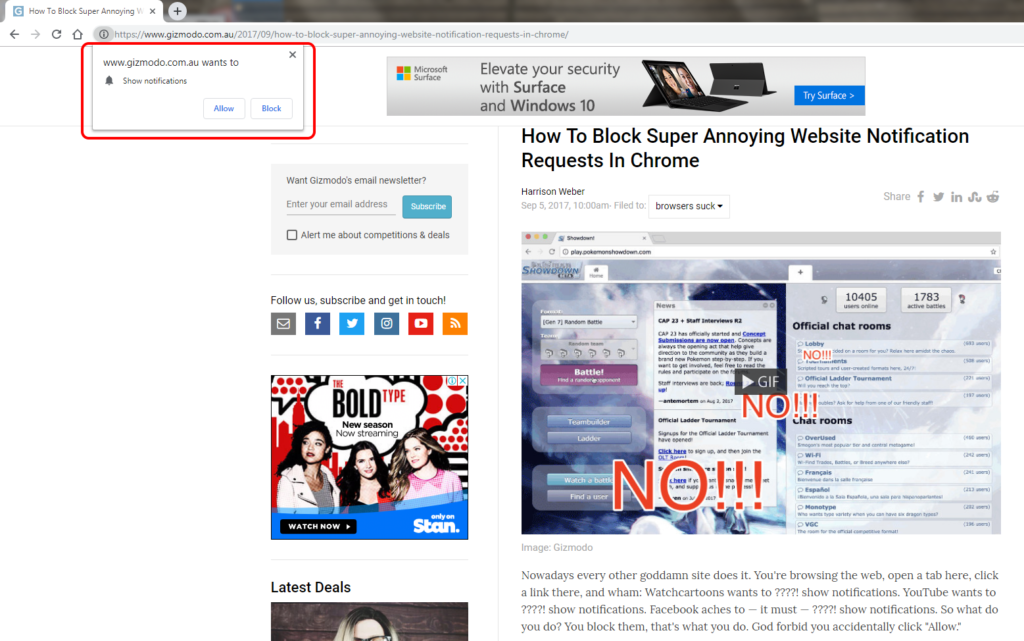
Click the “Ask before sending (recommended)” switch off. It should then say “Blocked”
Yeah it’s a counter-intuitive caption on that button. It implies that switching it off will just drown you in a sea of unwanted notifications without asking you.
But it seems to work.
Update 2023: It’s moved a bit, so now try:
Chrome Settings
Search for Site Settings
Default behaviour: Choose “Don’t allow sites to send notifications”
If you use Firefox or Safari, this How To Geek article covers those. The article notes that Edge doesn’t currently have an option to turn them off for good.
I meant to post this ages ago: in early 2018 I got my first Thinkpad – an old T430. Very nice.
I had been looking for my first Thinkpad; an upgrade off a slow Lenovo (non-Thinkpad) laptop, and I thought I might splash out on a new one.
But then I discovered my sister had an ex-work T430 she didn’t want. Sold it to me for what she got it for: AUD $100.
Specs: i5-3320M (2.6 GHz), 4 Gb RAM, 1600 x 900 display, SSD. With a dock (that I’m not sure I’ll ever use)
Some scuffing on the case, but overall it’s in very nice condition. Not sure how old it is, but this model was first sold in 2012.
And I found I could still upgrade it from Win7 to Win10 for free, using the Media Creation Tool.
I added another 4 Gb of RAM.
The keyboard is lovely, but I never did get used to the Fn/Ctrl key locations being backwards from most layouts, so I ended up swapping them in the BIOS.
Problems
One oddity after upgrading to Win10: Microsoft Edge was extremely slow to respond to clicks. The solution was a clean Win10 install – via the “reset your PC” feature.
I also found that under Win10, the trackpad would sometimes freeze up for a few seconds, particularly after two-finger scrolling:
This can also occur if Trackpad Tapping is disabled – I’d prefer it was disabled to avoid false positive clicks when I’m just trying to move the pointer, but oh well.
Modding
More reading for myself when I get the chance: Modding guide
But I hope this old laptop will keep me going for a while for my on-the-go computing needs.