Geek Rant dot org


Tue 2008-04-22

How to compress attachments in Outlook

Filed under: — daniel @ 07:57

I use Outlook at work, and sometimes people send big attachments without zipping them up. Often they’re documents which are in the document management system anyway. Sigh.

Anyway, it’s easy enough to compress them within Outlook.

1. Open mail item.

2. Save attachment(s) to a temporary directory.

3. Zip (or whatever) the file. (See? 2Mb XLS down to 300Kb. Why didn’t the sender do that?)

4. In the email, click Edit / Edit Message on the menu. (This feature is a boon for fraudulent modification of emails, but also for compressing attachments.)

5. Right click on the attachment and Remove.

6. Drag the zip file into the email. (For some reason you can’t use the menu to insert an attachment like you can when composing. And the drag-drop has to land in the body section of the email.)

7. Save and Close the email.

Voila, a bunch of space saved.

I haven’t explored to see if the same method can be used in other mail clients.

Digg this

Mon 2007-09-17

Outlook 2007 irritations

Filed under: — daniel @ 07:56

Why do I keep getting these? They rarely happened in Outlook 2003.

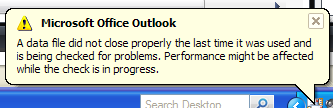
A data file did not close properly
I promise you, I did close Outlook properly. Just like I do every time. It’s good that this version can do the integrity check in the background, but I don’t see why it’s needed at all.

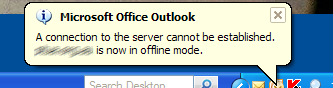
A connection to the server cannot be established
IMAP performance in this version is appalling. It rarely seems to stay connected to the IMAP server for more than a few seconds at a time. Just about all the time I need to keep reconnecting and/or do the Mark For Download / Process Marked Headers thing, which gets old really fast.

I like a lot of the other stuff in the new Outlook, but these are very irritating.

Digg this

Fri 2006-08-25

Outlook sigs out of sync

Filed under: — daniel @ 18:37

Using Outlook, but your signatures are going a bit funny? Turns out it keeps multiple copies of them, in RTF, HTML and TXT format, and sometimes they get out of sync. They’re in Documents and Settings\Username\Application Data\Microsoft\Signatures — if you check what’s there and delete any old ones, you should be okay after that. (Thanks Dave)

Digg this

Wed 2006-05-10

Outlook Attachments Unattached

Filed under: — tony @ 14:24

If you’re looking for an easy way around “Outlook’s dumbarse ‘protecting you from shadows’ attachment filter” download and install this handy attachment options extension for Outlook. It allows you to specify which level 1 attachments to let through; very handy if you have someone mailing you Access databases.

Digg this

Mon 2006-05-01

Search Upgrade

Filed under: — tony @ 10:39

I’ve been a huge fan of Microsoft’s Desktop Search since it was released, it has changed the way I use my PC and is amongst the first things I install on new PCs. I dream of the day they integrate it with their recently purchase, Foldershare (A magnificent free product that allows you to sync your files seamlessly over the net using P2P technology. It also allows you to search and download from any of your computers from any net connected PC as long as your PCs are turned on. Try it now if you have more than one PC and you want to keep files in sync across them.).

To get an improved version of Desktop Search download the beta of the Windows Live Toolbar. The toolbar doesn’t work in Firefox but it does allow you to update Desktop Search and gain a couple of great features. It installs a new toolbar in Outlook that allows you to save Desktop searches as virtual folders within Outlook - so now Outlook can display search results that include files as well as emails/tasks/appointments. It also changes the Windows default search function (found on the Start menu) to use Desktop Search which means the end of searches that won’t ever find what you’re looking for.

Digg this

Thu 2005-11-17

How to stop Outlook hiding line breaks

Filed under: — daniel @ 19:38

One of my most hated things from recent versions of Outlook is the way it edits plain text messages by chopping out supposedly extra line breaks. Inevitably, they’re not extra — they’re there because the sender doesn’t like hitting enter twice between paragraphs — particularly when writing short lists of things.

Outlook does give you the option of restoring the linebreaks it’s taken away by clicking an option near the top of the message. It’s a right pain to have to keep doing it on every message though.

Outlook hides linebreaks

In Outlook XP, I never found a way to turn this off. Maybe it was there, but very well hidden.

Fortunately in Outlook 2003 it’s possible to turn it off for good, though the online help is no help at all at finding it.

Here’s how you do it: Tools / Options / Preferences tab / E-Mail section / click E-mail options. Then find and turn off the checkbox “Remove extra line breaks in plain text messages”.

(Note that after turning it permanently off, it still happens if you’ve been mucking about in a message beforehand, shown the “extra” linebreaks, then hidden them again and saved the message.)

Digg this

Fri 2005-10-28

How to hide or move the followup flag column in Outlook 2003

Filed under: — daniel @ 17:42

Outlook flagsI’m sure in older versions of Outlook, the Followup Flag was somewhere on the left hand side, and that’s still where I’m used to seeing it. But in Outlook 2003, it’s on the right, and apparently can’t be moved. Unlike the other columns, it’s not draggable, and if you go into the dialog box that sorts the columns, no matter where you think you’ve moved it, it stays put on the right hand side.
It turns out you have to employ some special trickery to move it. In the Other Settings, there is an option called Quick Flags. This needs to be turned off to hide or move the column.

The down side is, Quick Flags does nifty things, with a left-click alternating between setting a red flag, and ticking off (to show a task is completed). It also provides a special right-click menu that allows quick access to the flags (hence the name), instead of via the main right-click menu via the Followup option. MS, in their wisdom, made all this only work when the Flags are in the rightmost column. Weird.

Digg this

Thu 2005-09-08

Apple announces iPod Nano (and some other stuff)

Filed under: — daniel @ 17:54

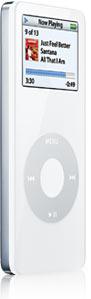
iPod NanoWell, after much speculation, this morning (AU time) Apple announced a swag of new stuff, including:

  • the quite ludicrously tiny iPod Nano (I reckon I’d lose it)
  • the very expected Motorola ROKR mobile phone, the first to include iTunes (shame it’s a Motorola. I hate Motorolas.)
  • a shiny new version of the iTunes software, featuring parental controls (woo hoo, does this mean no more Lenny Kravitz’s What The F%$# are we saying for my kids?), syncing data with Outlook (at smeggin’ last), playlist and shuffle enhancements
  • some exclusive content to the iTunes store, which therefore means we CAN’T BUY IT IN AUSTRALIA (grumble)
Digg this

Tue 2005-09-06

Out to lunch

Filed under: — daniel @ 21:29

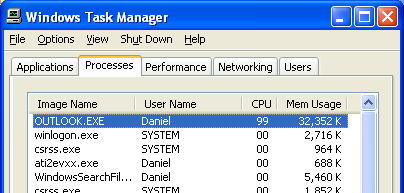
Windows XP Task managerYou know what really bugs me about Windows and Office sometimes? Sometimes a process will just decided to grab all the CPU and go out to lunch for minutes at a time. I don’t know what it thinks it’s doing — re-indexing its data, re-compiling itself, contacting Mars, something like that. Whatever it is, it’s not paying much attention to what I want it to do.
Outlook just did it. I was in the middle of writing an email. Voom, out to lunch. I managed to save it and exit. And the process kept running till I killed it. WTF? And before you ask, yes, my antivirus and firewall are primed, up-to-date and running. Latest releases, latest service packs of everything. This stuff should be stable.

Annoying, that’s what I call it.

Digg this

Tue 2005-08-30

Annoying Outlook bug

Filed under: — daniel @ 07:23

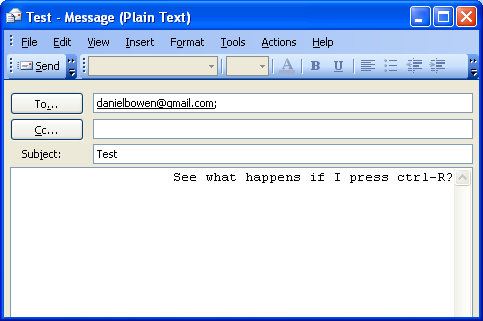
I’m sure this bug has been around for years, possibly back as far as Outlook 98: When reading an email, Ctrl-R is the shortcut for Reply. When writing it, it’s a shortcut to right justify the current paragraph. Even when you’re writing a plain text format mail which has no right justify.

If it was using the same shortcut keys as Word, you could left align it with Ctrl-L, or centre it with Ctrl-E. But neither of these seem to work. Not that it matters greatly, since being plain text, it loses the alignment during transmission.

Digg this

Fri 2005-07-01

The amazing vanishing files

Filed under: — daniel @ 07:17

When you open an attachment in Outlook 2003, it saves it into a temporary directory then shells the appropriate program to open it. If you then do a Save As from that program, it defaults to that directory, which appears to be something like this:

c:\Documents and Settings\USERNAME\Local Settings\Temporary Internet Files\OLK85\

A colleague of mine “lost” a bunch of files into there. Try and browse there through Windows Explorer, and you can’t find it. In fact you can get locked out of it even from the application Save As, if you go to the parent directory. The only way to get back in is to type the path manually, or search for the OLK85 directory on the filesystem.

To further confuse things, in a completely different directory:

C:\Documents and Settings\USERNAME\Application Data\Microsoft\Office\Recent\

…are shortcuts for all those files in the OLK directory, which are back where we started:

Confused? I am.

The default temp directory is also in that general neighbourhood by the way, and deserves a cleanout every so often.

C:\Documents and Settings\USERNAME\Local Settings\Temp\

A quick look in mine for files more than a week old found 557 files taking 272Mb, as well as 38 directories with another 316Mb. Apart from a Temporary Internet Files directory in there, it all went happily to the recycle bin, and thence to Silicon Heaven.

Digg this

Thu 2005-06-02

XP logon screen tells you about unread mail

Filed under: — daniel @ 07:34

Okay, this is from the Windows XP logon screen.

XP Logon prompt: 188 unread mail messages

Leaving aside for a moment the fact that I have nearly 200 unread mails, I want to know three things:

After all that messy anti-trust business, surely Windows XP and Office 2003 shouldn’t be so closely coupled as to provide this information on the logon screen.

Who decided providing this on the logon screen would be a good idea? What other surprise supposedly private items might popup for all to see?

How the smeg do I turn this off, while still using the Welcome screen, and preferably leaving Fast User Switching on?

This KB article describes it in more detail. I’ll need to do a little more digging to figure out how to turn it off.

Update 12:45pm. This article describes a registry hack that effectively disables it, by removing the privilege that updates the message count.

7:30pm. Yes, that registry hack seems to work. (And thanks to Wilson, who spotted it before I spotted it).

Digg this

32 queries. 0.444 seconds. Powered by WordPress